Run Local LLMs on Windows 11 Laptop with Ollama (Qwen 3.5, Gemma 4 and VS Code)
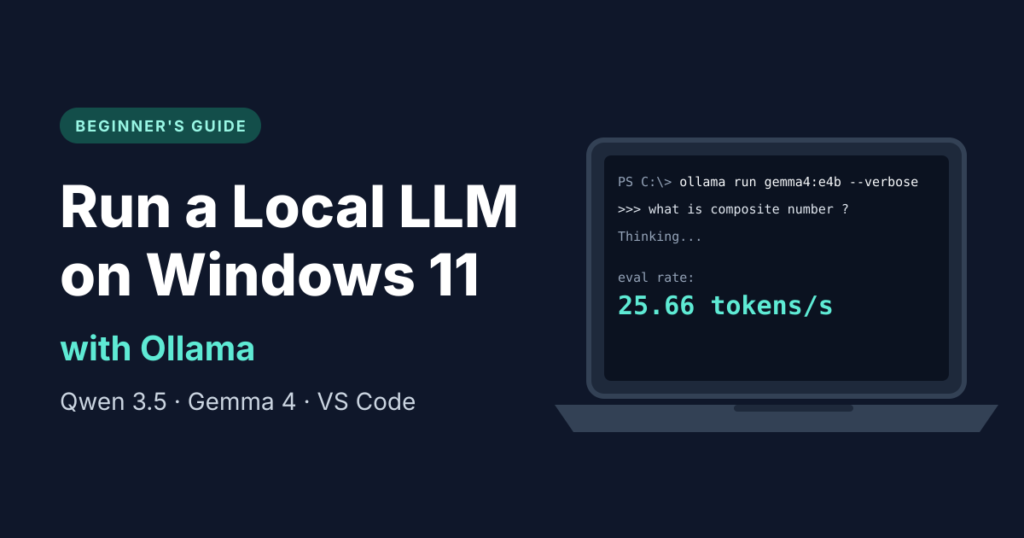
You can run a local LLM on Windows 11 Laptop with Ollama, a free tool that downloads AI models and runs them on your own PC. There is no cloud account and no per-prompt cost, and once a model is downloaded it works without an internet connection. Most of the setup time is spent waiting for downloads.
I set this up on my own Windows 11 laptop, installed three models (Qwen 3.5 4B, Qwen 3.5 9B and Google’s Gemma 4 E4B), asked each the same question, compared their speed and connected one to Visual Studio Code. Every command and screenshot below comes from that setup, so you can see what to expect before you try it.
Last tested: November 2026 on Windows 11. Model tags and Ollama versions change quickly, so if a command fails, check the official pages linked at the end.
Quick start: three commands
If you only want it running, do this and come back for the details.
- Install Ollama from the Windows download page.
- Open PowerShell and run
ollama pull gemma4:e4b. It is about 6.6 GB (the size I saw; it can differ by version). - Run
ollama run gemma4:e4b --verbose, ask a question, and read the speed stats Ollama prints after the answer.
Below I cover what a local LLM is, what hardware you need, the three models and my speed test, customising a model, VS Code integration, the Python API, privacy, troubleshooting and common questions.
1. What is a local LLM?
A local LLM is an AI language model that runs on your own computer instead of on a provider’s servers. A large language model (LLM) is the technology behind assistants such as ChatGPT, Gemini and Claude.
With a cloud assistant, your prompt travels to the provider’s servers and the answer comes back. With a local model, you download the model once, Ollama loads it into your computer’s memory, and your own processor generates every reply.
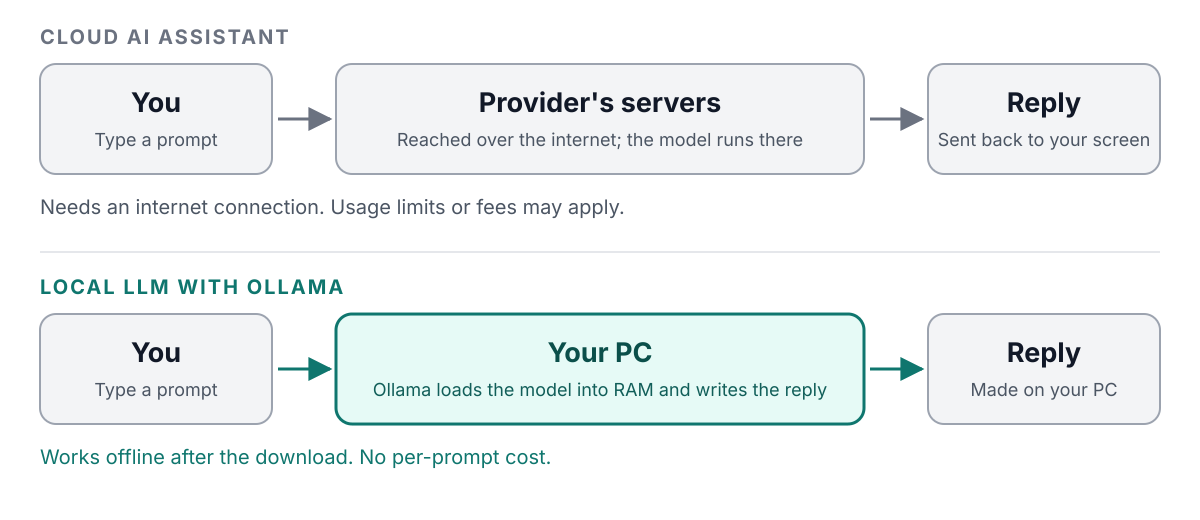
The benefits are control, no usage fees, offline use, and documents that stay on your machine. The trade-off is that speed and quality depend on your hardware and the model size, and small local models are weaker than the largest cloud models on complex tasks.
2. What hardware do you need to run a local LLM?
You do not need a gaming laptop or a dedicated graphics card to start. Small quantised models run on a regular laptop using its processor and system RAM.
Here is the machine I used for every test in this post:
| Component | My test setup |
|---|---|
| Processor | AMD Ryzen AI 7 350 |
| Graphics | AMD Radeon 860M (integrated) |
| RAM | 32 GB DDR5 |
| Operating system | Windows 11 |
| Editor | Visual Studio Code |
Integrated graphics such as the Radeon 860M share system RAM with the processor, so there is no separate pool of fast video memory (VRAM). Whether Ollama uses the integrated GPU or falls back to the CPU depends on your driver and Ollama’s backend. The ollama ps command shows which one it picked (see section 7).
How much RAM do you need?
Use a model’s download size as the floor: a 6.6 GB model needs at least that much free memory, plus several GB for the context window and Windows itself.
| RAM | What to expect |
|---|---|
| 8 GB | Only very small models (around 2B parameters or less), and you will need to close other apps |
| 16 GB | Small models such as Qwen 3.5 4B. Gemma 4 E4B should be workable with other apps closed, but I have not tested it on 16 GB |
| 32 GB | Comfortable with all three models in this post, one at a time. This is what I used |
| 64 GB | Room for much larger models (20B parameters and up), which I have not tested |
These are starting points, not hard limits. Real speed also depends on memory bandwidth, GPU support and context length.
Quick glossary
- Parameters: the billions of learned numbers inside a model (the “B” in 4B or 9B). More usually means more capable, and more memory.
- Quantisation: storing those numbers with fewer bits, for example 4-bit, so the model fits in less memory.
- Context length: how much text (your prompt, the chat so far and the reply) the model can keep in view at once. Longer context uses more memory.
- Token: a small piece of text, often part of a word. Speed is measured in tokens per second.
- Inference: running a trained model to produce an answer.
3. Why use Ollama?
I chose Ollama because it does three things with almost no setup: it downloads models, it runs them with one command, and it serves a local API on your PC so other tools, such as VS Code and Python scripts, can use the same models.
Other good options exist, and the right one depends on how you like to work:
| Tool | Best for | Keep in mind |
|---|---|---|
| Ollama | Command line and a local API; a solid base for building your own apps | Command-line first |
| LM Studio | A point-and-click app with a built-in model browser and chat window | A better fit if you prefer a graphical interface |
| llama.cpp | Maximum control and tuning; many tools build on it | More manual setup and flags |
This guide uses Ollama. Official site: ollama.com.
4. How to install Ollama on Windows 11
Installing Ollama takes a few minutes. The installer puts it in your user folder and does not need Administrator rights, but it wants at least 4 GB of free space for the program itself.
Step 1: Download and run the installer
Go to ollama.com/download/windows, download the installer and run it. When it finishes, Ollama keeps running in the background and the ollama command becomes available in PowerShell, Command Prompt and Windows Terminal.
Step 2: Check that it works
Open PowerShell or Windows Terminal and run:
ollama --versionYou should see a line like ollama version is followed by a version number. If PowerShell says ollama is not recognised, close the terminal and open a new one so it picks up the updated PATH.
Step 3: Learn the two commands you will use most
ollama pull MODEL_NAME
ollama run MODEL_NAME
pull downloads a model. run starts an interactive chat with it (and downloads it first if you do not have it yet). To leave a chat, type /bye.
Where Ollama stores models
Downloaded models live in the .ollama folder inside your user profile, and each one takes several GB. If your C: drive is short on space, create a user environment variable named OLLAMA_MODELS that points to another folder, then restart Ollama.
5. Download Qwen 3.5 and Gemma 4 with Ollama
I installed models from two developers, Alibaba’s Qwen and Google’s Gemma, and two sizes of Qwen so I could see what extra parameters buy you on a laptop.
| Model | Command | Download (approx.) | Notes |
|---|---|---|---|
| Qwen 3.5 4B | ollama pull qwen3.5:4b | 2.5 GB | Smallest of the three, light on memory |
| Qwen 3.5 9B | ollama pull qwen3.5:9b | 5.5 GB | More parameters, usually more capable on hard prompts, and slower |
| Gemma 4 E4B | ollama pull gemma4:e4b | 6.6 GB | Google’s compact model, accepts text and images, 128K context |
Download sizes are approximate. Run ollama list to see the exact size on your PC.
Pull all three, one at a time:
ollama pull qwen3.5:4b
ollama pull qwen3.5:9b
ollama pull gemma4:e4b
Qwen 3.5
Qwen is Alibaba’s model family. The smaller Qwen models balance size and capability well for laptops, and they handle general chat, code explanation, Python help, summarising and basic reasoning. Pulling both the 4B and the 9B lets you compare a smaller model against a larger one on the same prompt.
Gemma 4 E4B
Gemma is Google’s family of open-weight models. The “E” in E4B stands for “effective” parameters: the model is built to run efficiently on devices like laptops. It handles reasoning, coding help and image input.
Gemma 4 needs a recent version of Ollama (support arrived in v0.20.0), so update Ollama if the pull fails. Use the explicit gemma4:e4b tag, even though plain gemma4 currently points to the same model, so your commands stay predictable.
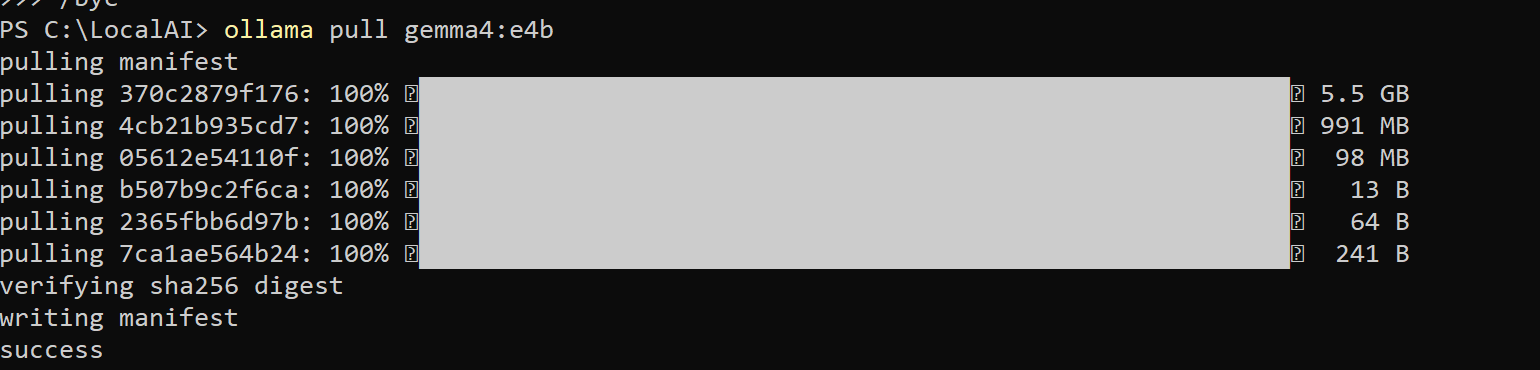
Warning: avoid tags that end in -cloud. Those models run on Ollama’s servers, not on your PC, so they are neither private nor available offline.
6. Same question, different models: my speed results
On my machine, Gemma 4 E4B generated 25.7 tokens per second and Qwen 3.5 generated 16.1 on the same question, so Gemma was about 1.6 times faster. Both are well above reading speed (a fast reader takes in roughly 5 tokens per second), so either feels responsive.
I asked each model the same simple question, “what is composite number ?”, and ran it with the --verbose flag, which prints timing stats after the reply:
ollama run MODEL_NAME --verbose| Model | Prompt tokens | Prompt speed | Reply tokens | Reply speed |
|---|---|---|---|---|
| Qwen 3.5 ( 4B & 9B) | 15 | 47.7 tokens/s | 512 | 16.1 tokens/s |
| Gemma 4 E4B | 21 | 67.9 tokens/s | 1,024 | 25.7 tokens/s |
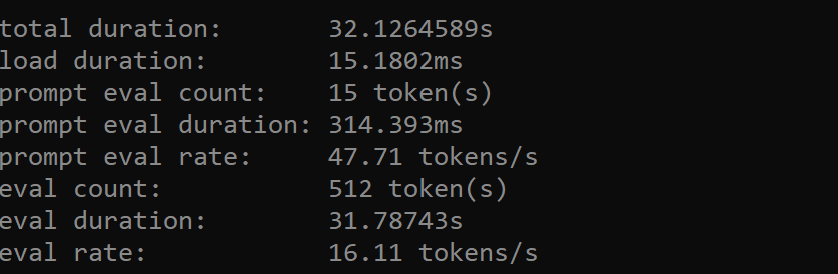
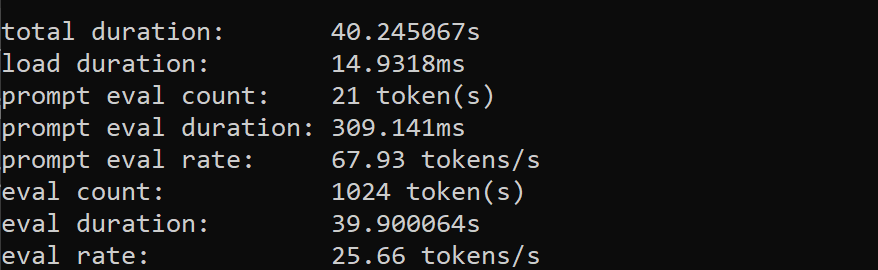
How to read the stats
- eval rate: how fast the model writes its reply. This is the number to compare between models.
- prompt eval rate: how fast it reads your question before it starts answering.
- total duration: the whole request, from your prompt to the last token.
- load duration: time spent loading the model. Mine is about 15 ms because the model was already in memory, so your first request after a restart will be slower.
Why the reply counts stop at round numbers
Both replies stopped at a round number of tokens (512 and 1,024). That is the output limit (num_predict) on my custom model variants, so neither reply was allowed to finish. The speeds are still valid, but the total durations are not the time to a complete answer.
Thinking mode: the model writes a plan first
Qwen 3.5 does not answer straight away. It prints “Thinking…” and works through a numbered plan (analyse the request, define the term, structure the answer) before the actual reply.
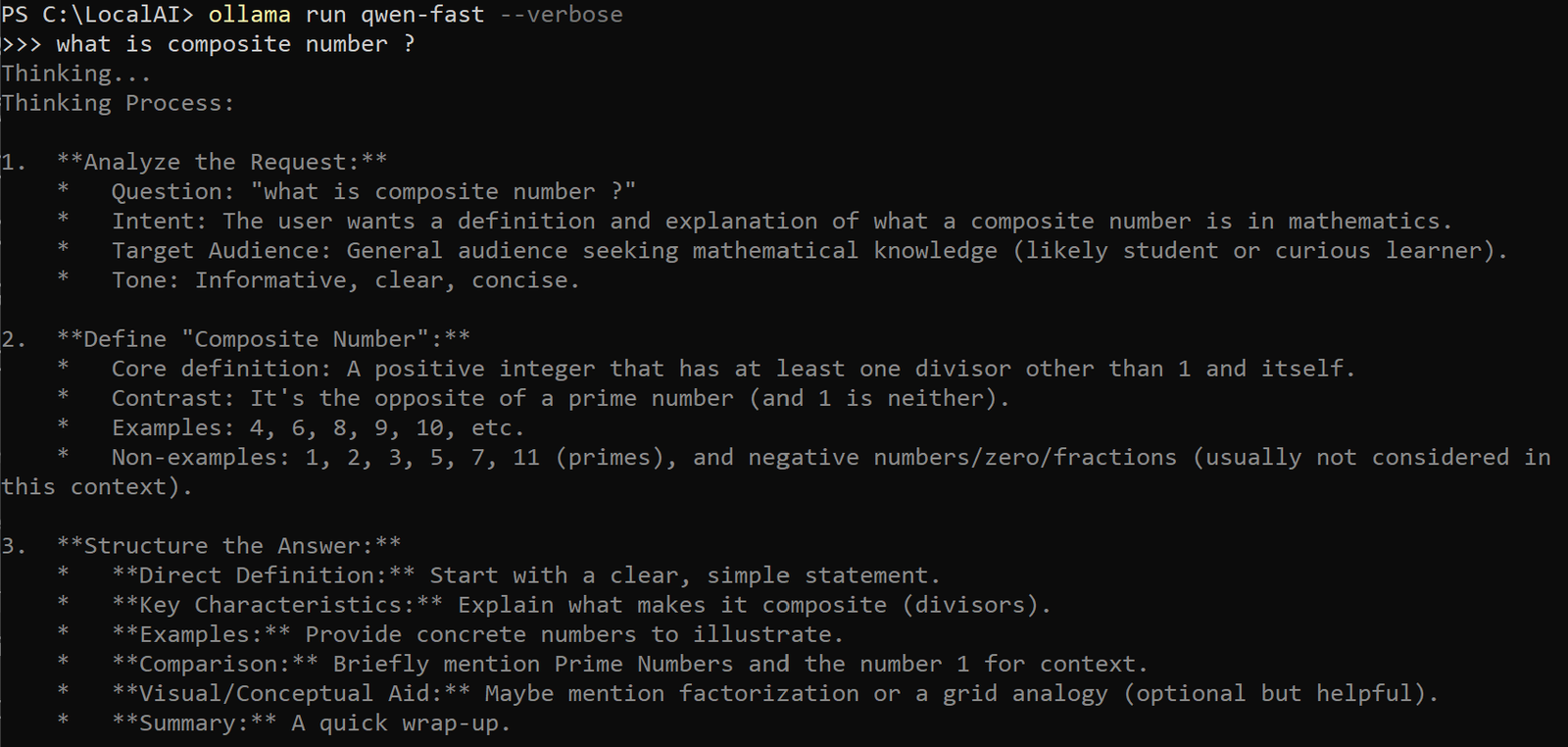
Thinking can improve answers on hard problems, but it costs time, and those tokens count against your output limit. A low limit can run out before the answer appears. If a model supports it, you can turn thinking off:
ollama run qwen3.5:9b --think=falseInside a chat, type /set nothink to turn it off and /set think to turn it back on. To keep thinking but hide the trace, add --hidethinking when you run the model.
This is one short prompt on one machine, so treat the numbers as a rough guide. Speed says nothing about answer quality: test each model on questions from your own work.
7. How to list, monitor and remove models
Four commands cover everyday model management:
ollama list          # models downloaded to your PC, with sizes
ollama ps            # models loaded in memory right now
ollama stop MODEL    # unload a model from memory
ollama rm MODEL      # delete a model from disk
The ollama ps output includes a PROCESSOR column that shows whether a model is running on the CPU, the GPU or a mix of both. This is the quickest way to answer “is my graphics hardware being used?”. Ollama also unloads an idle model after about five minutes by default.
On a laptop, keep one large model loaded at a time. Loading several at once is the fastest way to run out of RAM.
8. Customise a model with a Modelfile
A Modelfile lets you create your own version of a model with fixed instructions and settings, without training anything. It is how I made the custom variants used in section 6.
Step 1: Create a folder and an empty Modelfile
mkdir C:\LocalAI
cd C:\LocalAI
New-Item Modelfile -ItemType File
Creating the file from PowerShell avoids a common Windows trap: Notepad can quietly save it as Modelfile.txt, which Ollama will not find. The file must have no extension.
Step 2: Add the settings
Open the file (code Modelfile or notepad Modelfile), paste the following and save:
FROM gemma4:e4b

# Lower temperature gives more focused, less random answers
PARAMETER temperature 0.2
# Context window in tokens (more context uses more memory)
PARAMETER num_ctx 8192
# Maximum reply length in tokens
PARAMETER num_predict 1024

SYSTEM """
You are a helpful technical assistant
and experienced software engineer.

Your responsibilities:

- Provide accurate technical explanations.
- Prefer practical solutions.
- Write clean and maintainable code.
- Follow security best practices.
- Explain complex concepts in simple language.
- Clearly mention assumptions when uncertain.
"""
Watch the reply limit. num_predict 1024 caps every answer at 1,024 tokens, and a thinking model spends some of that on its plan. If answers get cut off, as mine did in section 6, raise the number or delete the line.
Step 3: Build and run it
ollama create gemma4-custom -f Modelfile
ollama run gemma4-custom
You now have a model with your own instructions and settings. You could make one each for coding help, cloud security questions, research notes or documentation.
This is prompt and runtime customisation, not fine-tuning. The original model weights stay unchanged.
9. Use Ollama inside VS Code with the Continue extension
PowerShell is fine for testing, but a local model is far more useful inside your editor. The free Continue extension connects VS Code to Ollama so you can chat about your code, edit it and apply changes without leaving the window.
Step 1: Install VS Code and Continue
Download Visual Studio Code if you do not have it. Open the Extensions panel (Ctrl+Shift+X), search for Continue, and install it. A Continue icon appears in the sidebar.
Step 2: Open Continue’s config file
In the Continue chat panel, open the assistant dropdown and click the gear icon next to Local Config. This opens config.yaml. On Windows the file lives at:
%USERPROFILE%\.continue\config.yamlStep 3: Point it at your Ollama model
Ollama serves its API at http://localhost:11434. Add your model like this, replacing the model value with a tag from ollama list:
name: Local AI
version: 1.0.0
schema: v1

models:
  - name: Qwen Local
    provider: ollama
    model: qwen3.5:4b
    apiBase: http://localhost:11434
    roles:
      - chat
      - edit
      - apply
You can add more models the same way and switch between them from the model menu at the bottom of the chat box (Ctrl+’ toggles).
Step 4: Ask it about your code
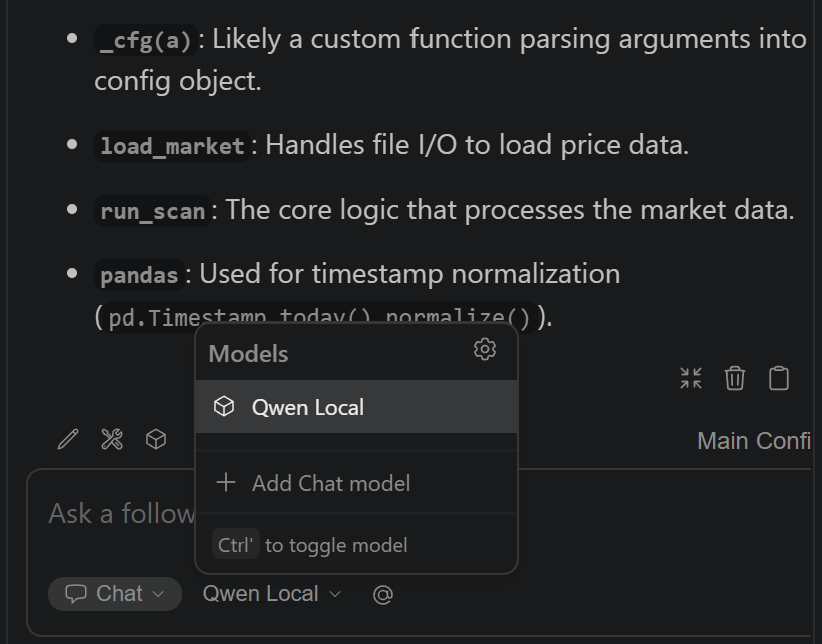
Open the chat with Ctrl+L, select some code and try:
- Explain what this function does.
- Find possible bugs.
- Suggest improvements.
- Write unit tests for this.
What to expect
Smaller local models will not match premium cloud assistants on large repositories or complex multi-file changes. For quick explanations, small edits and tests they are a good fit, and nothing leaves your PC.
A thinking model such as Qwen 3.5 can feel slow for small edits because it plans before it answers. A smaller model, or thinking turned off, is a better fit for editing. Tab autocomplete is a separate role in Continue’s config and wants a small, fast model; I have not set it up here.
10. Call your local model from Python
Ollama’s local API is what makes it more than a chat window. The terminal, VS Code and your own scripts all talk to the same service on your PC, so one downloaded model can power all of them.
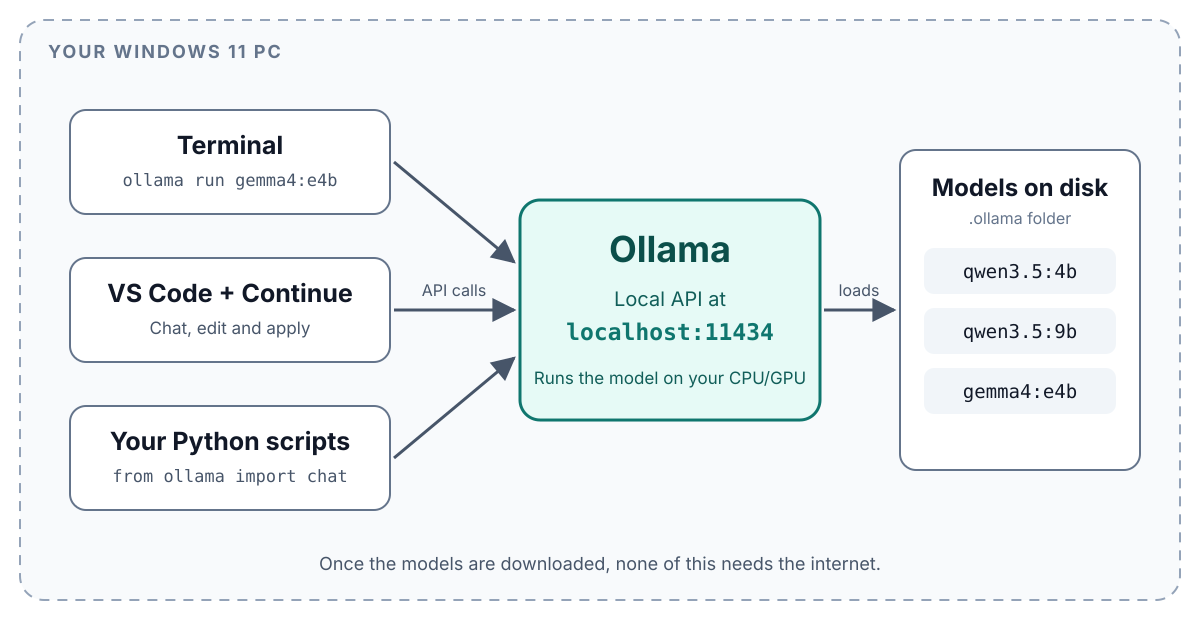
To try it, install the official Python library (pip install ollama) and run:
from ollama import chat

response = chat(
    model="gemma4:e4b",
    messages=[{"role": "user", "content": "Explain what a composite number is in two sentences."}],
)
print(response.message.content)
The script runs on your PC and sends the request to Ollama at http://localhost:11434. With a thinking model, the reasoning trace arrives in a separate thinking field, so your code can show or hide it.
This short pattern is the starting point for the projects in section 13: connect the model to files, tools and your own data.
11. Does a local LLM work offline, and is it private?
Yes. You need internet once to download Ollama, the models and extensions such as Continue. After that you can disconnect, and your prompts and the model’s replies are processed on your PC.
Three caveats keep that claim honest:
- Connected tools can leak data. Web search, cloud APIs and online documentation lookups still need the internet, and anything you connect to your model may send data out.
- Cloud models are not local. Tags ending in
-cloudrun on Ollama’s servers, so skip them if privacy or offline use is the point. - Do not expose the API. By default Ollama listens only on your own computer (127.0.0.1), and its API has no login. If you set
OLLAMA_HOSTto0.0.0.0or forward port 11434, anyone who can reach your PC can use your models, so add protection first.
12. Which local model should you pick?
Pick by RAM first, then by what you want to do. The flowchart below sums it up, based on what I tested.
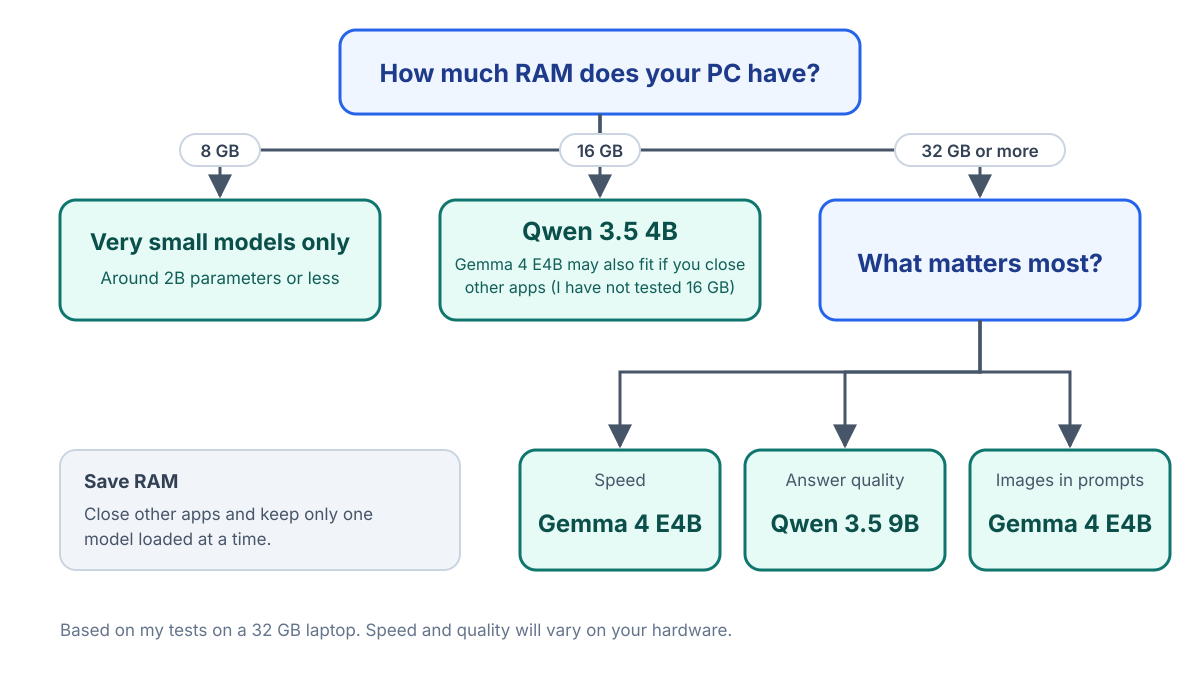
- Speed matters most: Gemma 4 E4B was the faster of the two models I measured.
- Quality matters most: try the larger Qwen 3.5 9B. More parameters usually help on hard prompts, at the cost of speed and memory.
- Tight on RAM: start with Qwen 3.5 4B, the smallest here.
- Images in your prompt: Gemma 4 E4B accepts them.
A model’s download size is not its full memory cost. A longer context window (num_ctx) uses extra memory, so if a model feels slow or your RAM fills up, lower num_ctx first.
13. What can you build with a local LLM?
Once the model answers from Python, you can build real tools around it. Five starting points:
- Local coding assistant: the VS Code setup from section 9, extended with your own prompts and Modelfiles.
- Private knowledge base: use retrieval-augmented generation (RAG) to let the model answer questions about your PDFs and notes. A vector database such as Chroma is a common choice.
- Python agents: give the model functions it can call, such as reading files, doing calculations or running predefined checks.
- Documentation assistant: keep your technical docs on your PC and ask questions about configurations, code and architecture decisions.
- Cloud security assistant: read security reports, summarise the findings and help prioritise fixes.
Start with whichever problem you already have. A small tool you use every day teaches more than a large project you never finish.
14. Troubleshooting common local LLM problems
Most problems come down to memory, a wrong tag or an old Ollama version. Check this table first.
| Problem | Likely cause | Fix |
|---|---|---|
ollama is not recognised | The terminal was opened before the installer updated PATH | Close the terminal and open a new one |
| Model runs very slowly | Model too big for your RAM, long context, or CPU-only inference | Try a smaller model, lower num_ctx, close other apps, and check ollama ps |
| RAM is full | Several models loaded, or a large context | Run ollama stop MODEL and keep one model loaded |
| Model not found | The tag does not match what you installed | Run ollama list and use the exact tag, or ollama pull it first |
| Gemma 4 will not download | Your Ollama version is too old | Update Ollama (Gemma 4 support starts in v0.20.0) |
| Reply stops mid-answer | The num_predict limit was reached, often after a long thinking phase | Raise or remove num_predict, or turn thinking off |
| GPU not used | Driver or backend does not support your GPU, so Ollama falls back to the CPU | Update the graphics driver and Ollama, read Ollama’s Windows GPU notes, then check the PROCESSOR column in ollama ps |
ollama create cannot find the Modelfile | Windows saved it as Modelfile.txt | Rename it to Modelfile with no extension |
| Odd squares in the download progress bar | Terminal font cannot draw the progress characters | Cosmetic only; try Windows Terminal |
| Wrong or vague answers | Small models have limits | Try another model, add context, and verify important facts yourself |
15. Final thoughts
Running a local LLM on Windows 11 is now an afternoon project, and most of that is download time. Ollama handles the hard parts, so you can spend your time on prompts, models and the things you build on top.
Three lessons from my setup are worth repeating:
- Speed differs between models even at similar sizes. Gemma 4 E4B generated about 1.6 times as many tokens per second as Qwen 3.5 in my test.
- Thinking mode and output limits interact. A low
num_predictcan cut a reply off before the answer appears. - Small local models are best for explanations, small edits and experiments, not for large multi-file refactors.
Start with one model, ask it questions from your own work, and add VS Code and Python once the basics feel comfortable.
Frequently asked questions
Can I run AI models locally on a normal Windows laptop?
Yes. Small quantised models run on regular Windows laptops. Speed depends on the processor, RAM, graphics hardware and model size.
Is Ollama free to use?
Running models locally with Ollama is free, and many models are free to download, though each has its own licence. Ollama also offers cloud models and paid plans (tags ending in -cloud), which are separate and do not run on your PC.
Do I need an NVIDIA graphics card to run local LLMs?
No. You can run models on the CPU. Ollama on Windows can also use AMD Radeon graphics through ROCm or Vulkan, depending on your card and driver.
Which is better, Qwen or Gemma?
They have different strengths. In my test, Gemma 4 E4B was faster (25.7 versus 16.1 tokens per second), but speed is not quality. Try both on your own prompts.
Can I use local AI models with Visual Studio Code?
Yes. The Continue extension connects VS Code to Ollama for code explanations, edits and tests.
Can I use a local LLM without an internet connection?
Yes, after the downloads. Features that need web access, such as search or cloud APIs, still need a connection.
Can I customise a local AI model?
Yes. An Ollama Modelfile sets system instructions and parameters. Changing the model weights themselves requires fine-tuning, which is a separate process.
Is 32 GB of RAM enough for local LLMs?
Yes. It ran all three models in this post comfortably, one at a time. 16 GB can work for smaller models.
What does tokens per second mean?
A token is a small piece of text, often part of a word. Tokens per second is how fast the model writes its reply. Anything above about 5 is faster than most people read.
Useful resources and official links
- Ollama and the Windows download
- Ollama documentation, including the Windows guide and the thinking guide
- Ollama model library: Qwen 3.5 and Gemma 4
- Visual Studio Code
- Continue and its configuration guide
- Chroma for RAG projects
Model availability, Ollama tags, hardware compatibility and installation steps change over time. Check the official documentation for the latest information.
Have you tried running AI models locally? Which models do you use, and what have you built with them? Share your experience in the comments.